Search for "how to show how many people are viewing a product" and almost every answer is a snippet like this:
<div><b id="viewers"></b> people are viewing this product</div>
<script>
  var min = 15, max = 60;
  viewers.textContent = Math.floor(Math.random() * (max - min + 1)) + min;
</script>
The number is picked at random between a minimum and a maximum. Nothing counts anybody. Open the same page in two windows and they disagree; reload and you get a third number. Shoppers notice, and our scan of 200 small Shopify stores found counters doing exactly this.
This guide shows the other way: a count of the people actually on the page in the last 90 seconds, with two lines of code, on any site.
Prefer to watch? Video walkthroughs: any website or WordPress (2 min) and Shopify (3 min).
What you need
- A free Provedly account. No card.
- Access to your site's HTML, or a WordPress or Shopify admin.
The count comes from a heartbeat: while a page is open, the browser tells Provedly's server every 30 seconds that this visitor is still there. The number shown is how many different visitors were seen on that page in the last 90 seconds. Nobody can type a number into it, including you.
Step 1: create a site and a widget
Sign up, add your site with its domain, and create a widget. The live counter is on by default with a minimum of 2, so when you are the only person on the page it stays hidden instead of showing "1 person is viewing this".
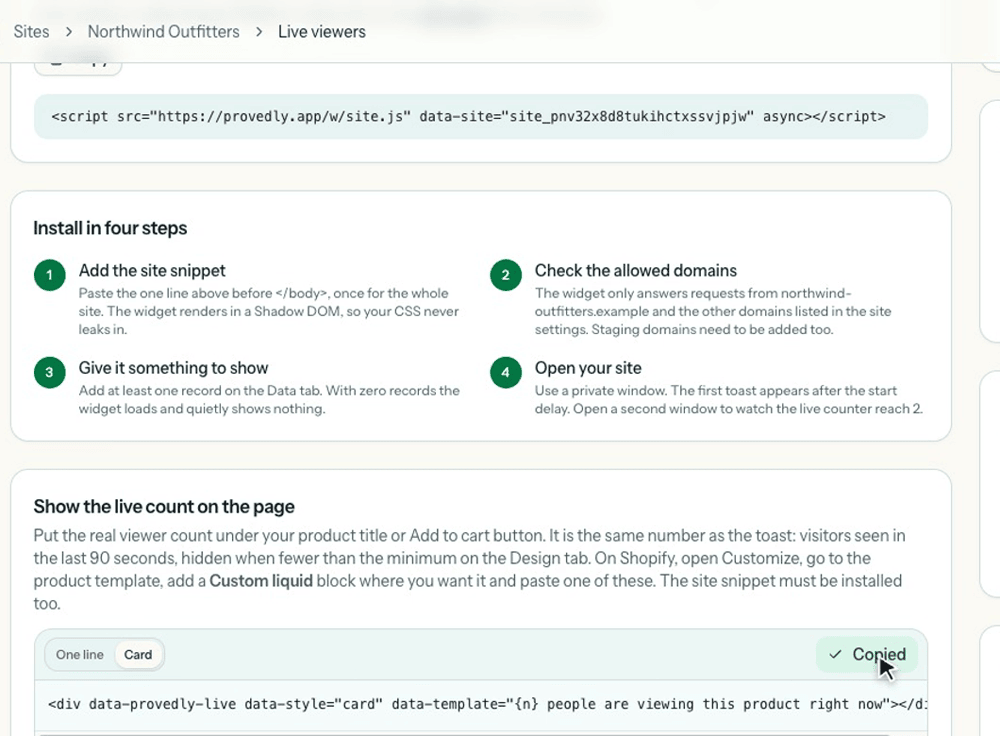
On the widget's Embed tab you will find the two lines you need: the site snippet at the top, and under Show the live count on the page, the counter line in two styles, One line and Card.
Step 2: add the site snippet
Paste the site snippet once, right before the closing </body> tag, on every page. It looks like this, with your own site key:
<script src="https://provedly.app/w/site.js" data-site="site_your_key" async></script>
Where it goes depends on your platform:
| Platform | Where to paste the site snippet |
|---|---|
| Plain HTML | Before </body> in your page or shared layout |
| Shopify | Online Store, Themes, Edit code, layout/theme.liquid, before </body> |
| WordPress | Install the free Provedly plugin and paste your widget token in its settings; no code needed |
| React, Next.js, Vue | In your root layout, once; the Embed tab has a ready-made version |
Step 3: put the counter where it should show
Add this line wherever the count should appear, usually right under the Add to cart or signup button:
<div data-provedly-live data-style="card" data-template="{n} people are viewing this product right now"></div>
- On Shopify, open Customize, switch to your product template and add a Custom liquid block under the buy buttons, then paste the line. In themes like Horizon, hover just under Buy buttons in the sidebar and click the plus.
- On WordPress, add a Custom HTML block where you want it and paste the line.
- On a plain site, paste it in the HTML next to your button.
Options you can change on that one line:
| Attribute | What it does |
|---|---|
data-style="card" |
A boxed version with the number large and a Verify link. Leave it out for a single line of text in your theme's font |
data-template="..." |
Your own wording. {n} is where the number goes |
data-dot="off" |
Removes the small orange dot |
Step 4: test it with real windows
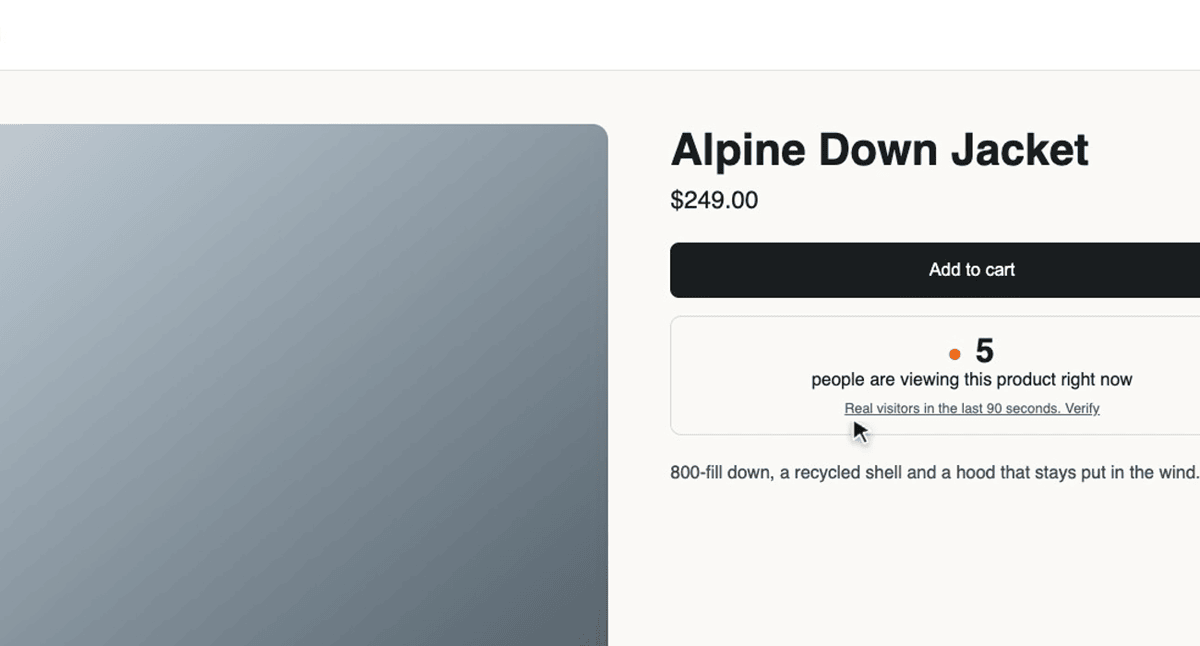
Open your product page. On your own, nothing shows, because you are below the minimum. Open the same page in a second window, or on your phone: the card appears with 2. Open a third and every window says 3.
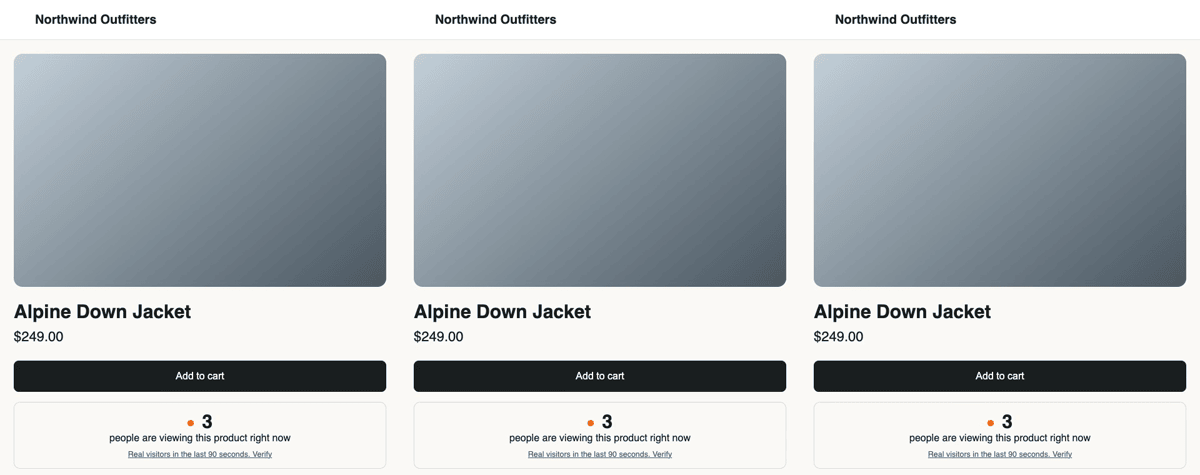
Close a window and the count drops back once that visitor's 90 seconds run out. It moves because people move, which is the whole point.
The Verify link
The card style links to your widget's public verification page. Anyone who clicks it sees how the number is counted: real visitors in the last 90 seconds, hidden below your minimum, and a note that the site owner cannot type a number into it. A random snippet has nothing it could put there.
When the counter does not show
- You are alone on the page. That is the minimum doing its job. Open a second window.
- The site snippet is missing. The counter line only works if the site snippet is on the same page.
- Your domain is not allowed. The widget only answers requests from the domains in your site settings. Add staging domains there too.
- The page is cached with an old theme. On Shopify, check you edited the published theme, not a draft.
Already have a counter?
If your store shows "people viewing" today and you are not sure where the number comes from, paste a product page into the free checker. It loads the page as several new visitors and tells you whether the number came from a server or was made up in the browser.
Frequently asked questions
Is a random "people viewing" counter illegal?
We are not lawyers and this is not legal advice. Consumer regulators, including the UK's Competition and Markets Authority, have said that invented popularity and invented urgency can mislead shoppers. A count of real visitors avoids the question.
What does the count include?
Visitors seen on that page in the last 90 seconds, counted from a heartbeat their browser sends every 30 seconds while the page is open. It is shown only when it reaches the minimum you set, 2 by default.
Does it slow my site down?
The site snippet loads asynchronously after your page, and the counter is a few lines of text. Your page does not wait for it.
Is it free?
Yes. The free plan includes the live counter, one site and up to 2,000 notification views a month, and you do not need a card to sign up. The counter works even before you have any purchase notifications to show.