You can now connect a WordPress or WooCommerce store to Provedly with one button. Install the free Provedly plugin, click "Connect to Provedly", sign in or create a free account, confirm your site, and you are sent back to WordPress already connected. Purchase notifications and CTA bars load on every page, and WooCommerce orders arrive over a signed webhook that the plugin creates for you. There is nothing to copy and paste.
Why setup friction matters
Until version 1.1, the plugin asked you to copy four things by hand from the Provedly dashboard and paste them into WordPress: the widget token, any bar tokens, the webhook URL and a signing secret. Each one lived in a different place, and the secret had to match on both sides.
That is a small job for a developer and an awkward one for a store owner who just wants a sales notification on the product page. Every manual step is a place to stop halfway, and the webhook step is the easiest one to get wrong. A secret that differs by one character means orders never arrive, and nothing on the storefront tells you why. The connect button removes all four steps.
The three steps
- Install the plugin. In your WordPress admin, open Plugins, then Add New, search for "Provedly", click Install and then Activate. The plugin page is wordpress.org/plugins/provedly.
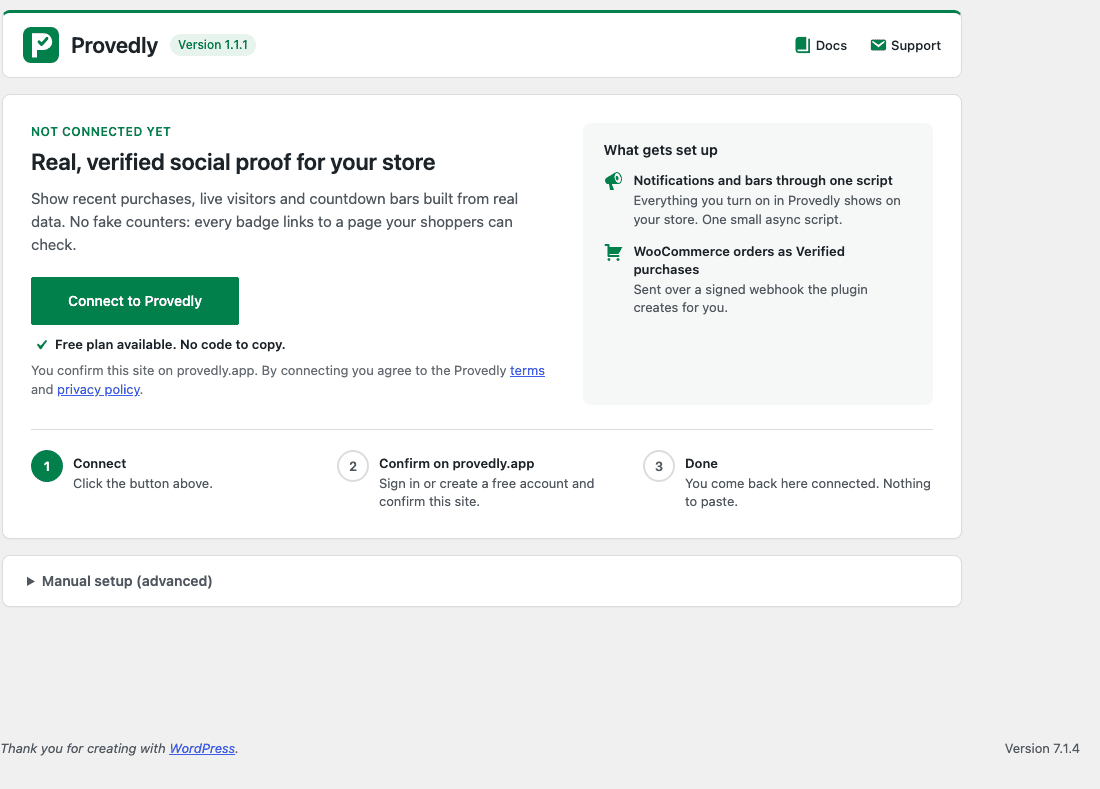
- Click "Connect to Provedly". Open Provedly in the WordPress admin menu and click the button. You land on provedly.app, where you sign in or create a free account.
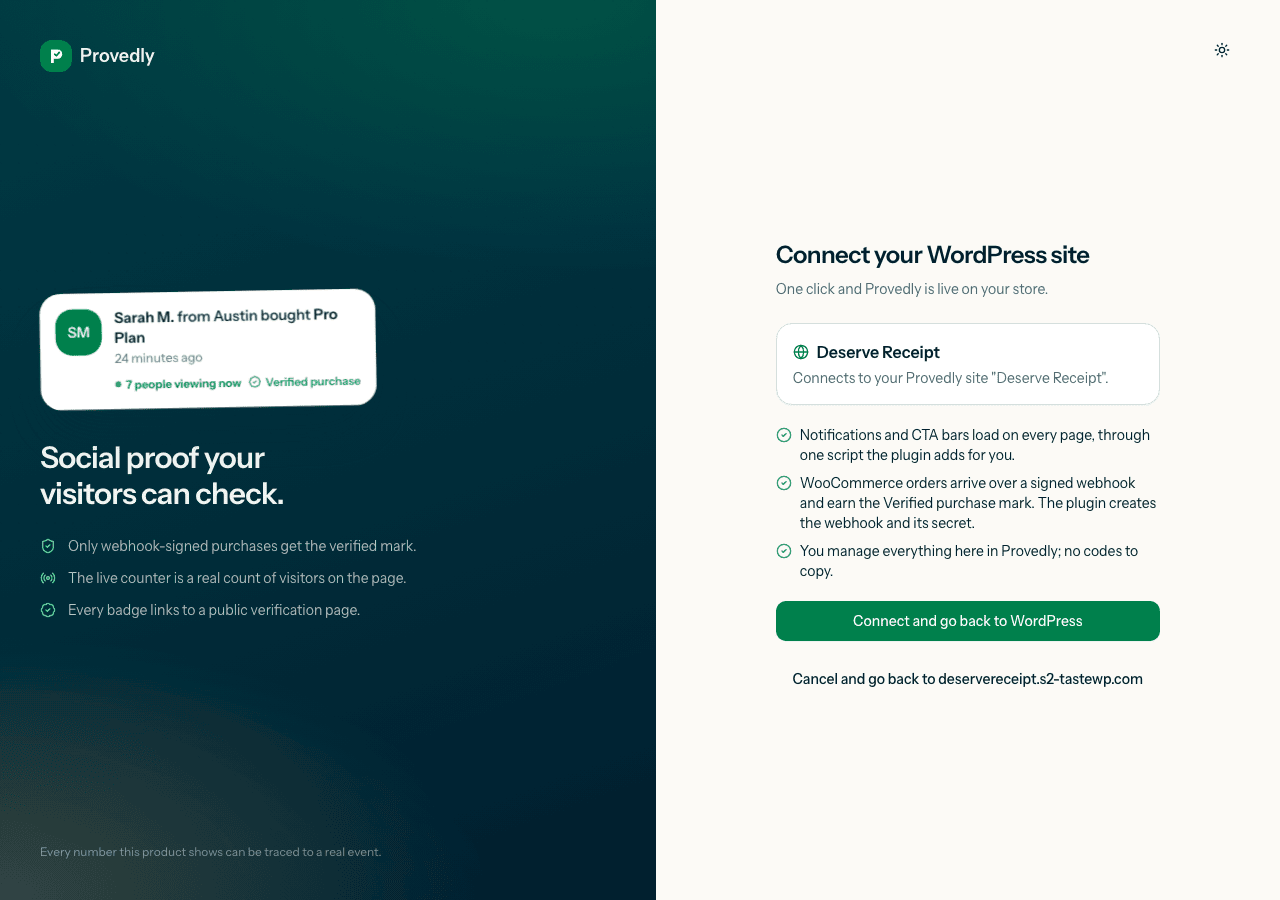
- Confirm your site. A confirm page shows the site being connected and what will be set up. Click Connect and go back to WordPress.
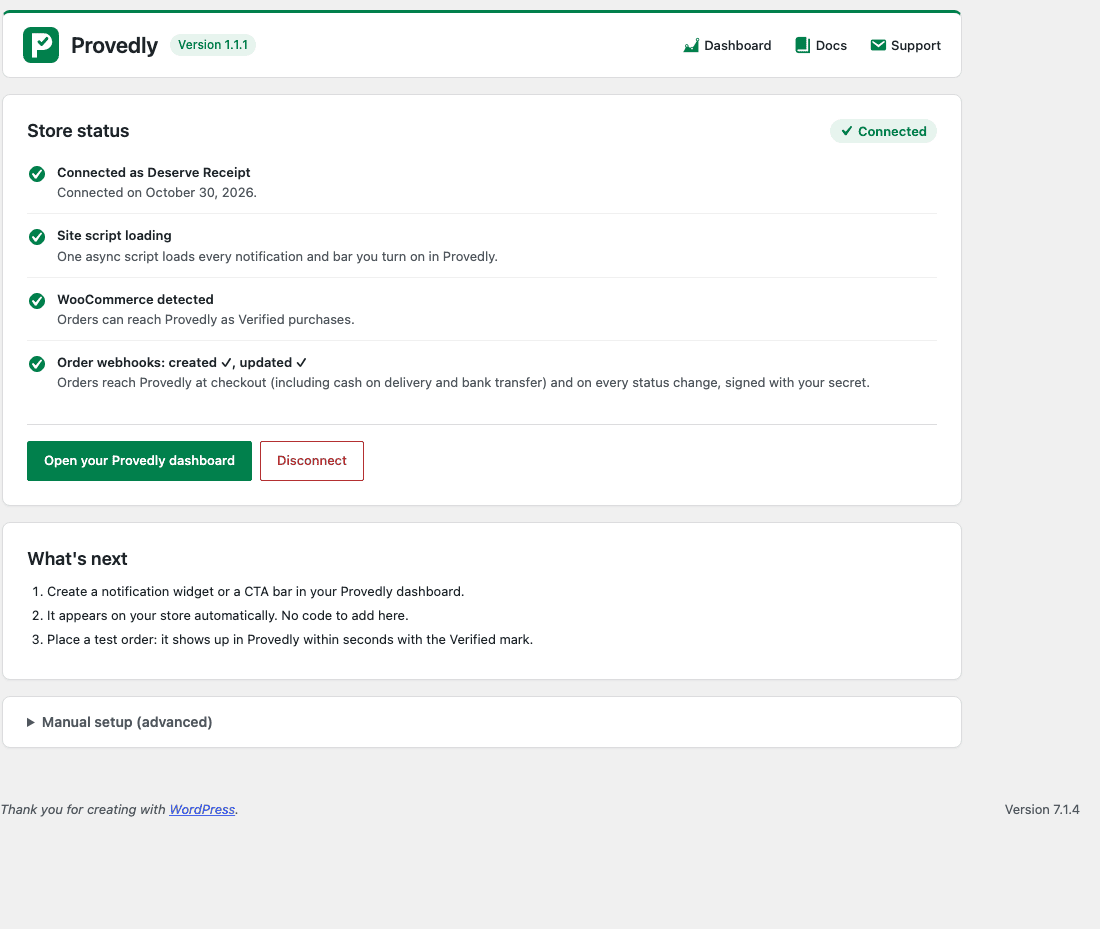
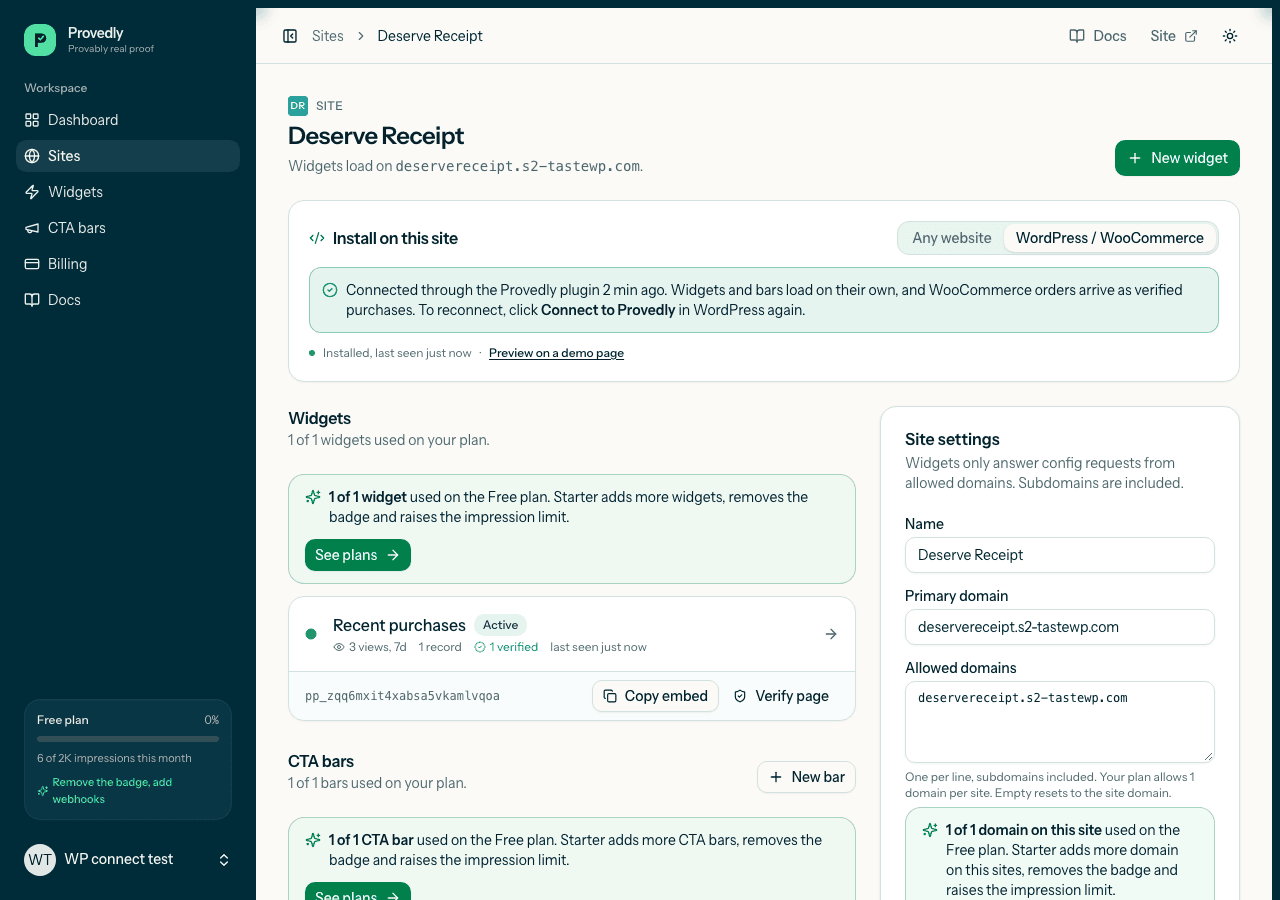
You are back on the plugin page, and it reads "Connected to Provedly as" followed by your site name. Below that is a short status list: WooCommerce detected, the order webhook and its status, and the site loader that delivers your notifications and bars.
What gets set up
Behind the confirm page, Provedly does the setup you used to do by hand:
- Your site. Provedly looks for an existing site in your account with the same domain. If there is none, it creates one.
- A first widget. If you have no widget yet, one is created so notifications can start showing.
- The WooCommerce source. Provedly sets up the source that receives your orders, and the plugin creates the matching webhook in WooCommerce together with its secret.
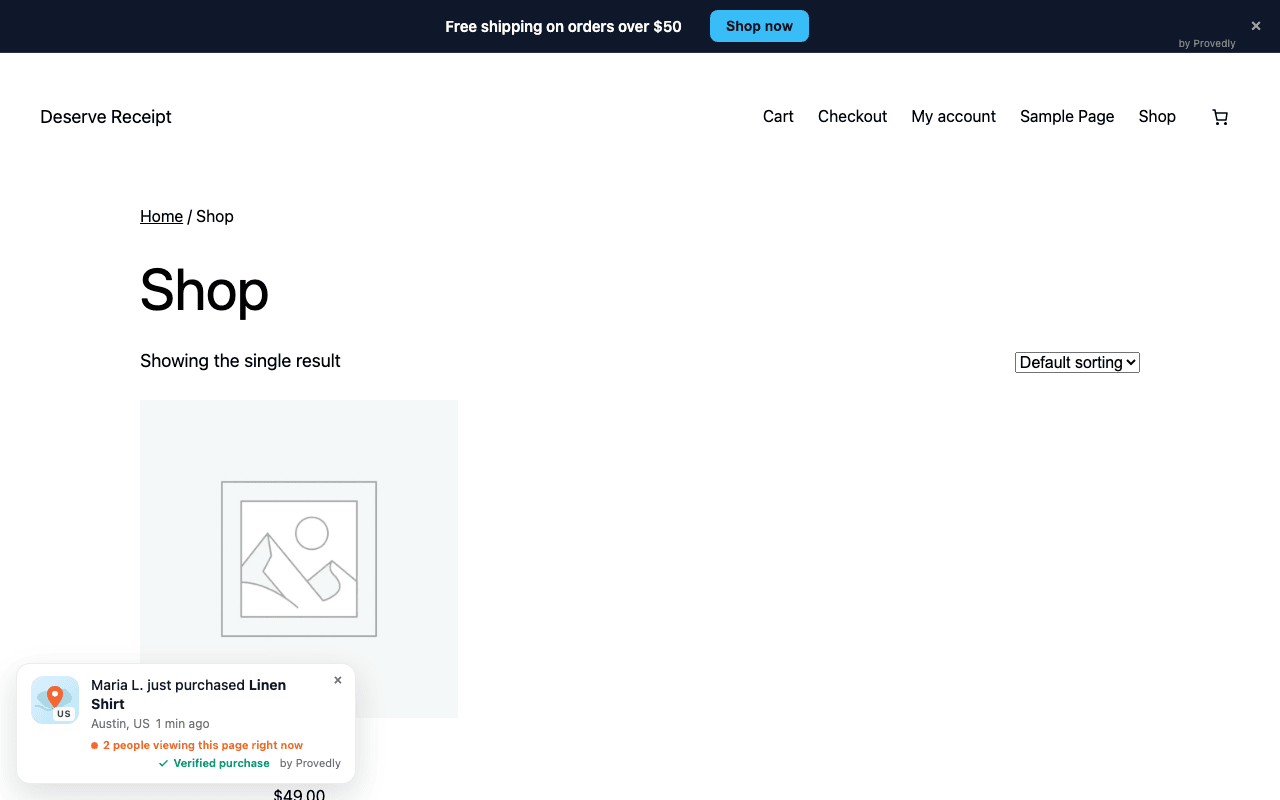
- One script on every page. The plugin adds a single script that loads your notifications and CTA bars. New widgets and bars you create in Provedly later show up on the store automatically, with no code change in WordPress.
Paid WooCommerce orders then arrive over the signed webhook and earn the "Verified purchase" mark. If you want the details of how that mark is earned, how verified purchase notifications work covers it.
If WooCommerce is not active when you connect, notifications and bars still load. When you activate WooCommerce later, the plugin creates the webhook then. You do not need to reconnect.
Everything else is managed in Provedly: what the notifications look like, which pages they show on, which bars run and when. The plugin page has a link to your Provedly dashboard.
How the connection stays secure
A one-click flow raises a fair question: what stops someone from connecting your site to their account, or theirs to yours? Three things.
- The connection code is single-use and short-lived. When you confirm, Provedly issues a code that works once and expires after 10 minutes.
- It only goes back to the site being connected. The code is sent to the same WordPress site that started the connection, and nowhere else. The plugin then exchanges it with Provedly server to server, so the code never has to be typed, shown or stored in a browser form.
- Orders are signature-checked. Every order the webhook delivers is signed with the secret the plugin created, and Provedly checks that signature (HMAC) before it accepts the order. Only real WooCommerce orders from your store get the verified mark. What a webhook signing secret is explains the idea in plain words.
Disconnect on the plugin page removes the connection and the webhook the plugin created, and nothing from Provedly loads on your store after that. Uninstalling the plugin cleans up its settings and its webhook as well.
Troubleshooting
Most problems come from one of these:
| What you see |
What to do |
| "WooCommerce is not active" in the status list |
Notifications and bars still load. Activate WooCommerce and the plugin creates the webhook; no reconnect needed. |
| "No WooCommerce webhook yet" |
Disconnect and connect again. The webhook is created during the connection. |
| The webhook is listed but not active |
Open WooCommerce, Settings, Advanced, Webhooks and check its status. WooCommerce can disable a webhook after repeated failed deliveries. Reconnecting creates a fresh one. |
| "This connection link has expired" |
The code lasts 10 minutes and must be finished in the browser that started it. Click "Connect to Provedly" again. |
| You connected a staging site |
Provedly matches sites by domain, so a staging copy becomes its own site. Disconnect it there and connect from the live domain. |
| "Your plan allows N site(s)" on the confirm page |
Your plan has reached its site limit. Remove a site you no longer use or see pricing for higher plans. |
If you prefer to paste tokens yourself, for example on a site where you manage scripts separately, the old flow is still there under Manual setup (advanced) on the plugin page. The setup docs cover both.
Getting started
The plugin is free in the WordPress directory, and the Provedly free plan needs no card. We are also running a founding offer: the first 20 paying stores get 50% off for life and a free install, with the code FOUNDING.
Frequently asked questions
Do I need a Provedly account before I click Connect?
No. If you do not have one, you create a free account on the way, then confirm your site. The free plan includes 2,000 impressions a month, and verified purchases are included.
What if my site is already in Provedly?
Provedly finds it by domain and connects the plugin to that site instead of creating a new one. Your existing widgets and bars keep working, and anything you create later appears on the store without touching WordPress.
Does the plugin work without WooCommerce?
Yes. Notifications and CTA bars load on any WordPress site. Without WooCommerce there are no orders to sync, so purchase records have to come from another source such as Stripe. If you add WooCommerce later, the webhook is created then.
What happens to my store if I disconnect or uninstall?
Disconnect removes the connection and the webhook the plugin created, and Provedly stops loading on your pages. Uninstalling also removes the plugin's settings and its webhook.
Install the plugin, click Connect, and create your free account when it asks.